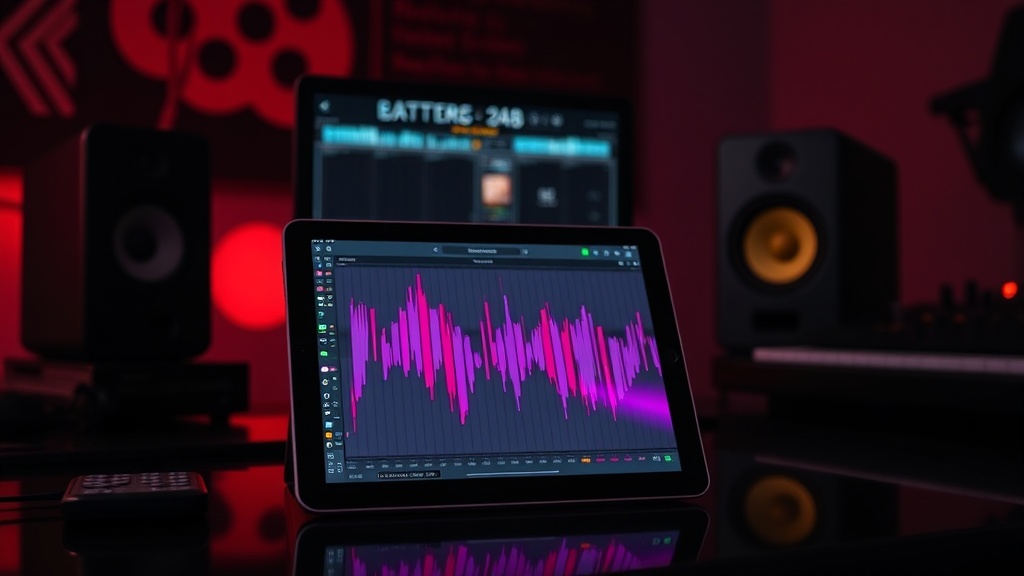
Transform Your iPad into a Professional Studio with Logic Pro

This guide provides the technical framework and hardware requirements necessary to convert your iPad Pro or iPad Air into a fully functional Digital Audio Workstation (DAW) using Logic Pro for iPad. You will learn how to optimize your hardware configuration, manage external I/O, and utilize specific professional workflows to move beyond basic sketching into high-fidelity production.
The Hardware Foundation: Beyond the Touch Interface
While the touch interface of the iPad is intuitive for sketching melodies, professional production requires precision that a finger cannot provide. To treat your iPad as a legitimate studio centerpiece, you must address three specific hardware pillars: input, control, and monitoring.
Audio Interfaces and Connectivity
The built-in microphone on an iPad is sufficient for voice memos, but it lacks the preamplifier quality required for professional vocal tracking or high-impedance instruments. To bridge this gap, you need a Class Compliant USB-C audio interface. Devices such as the Focusrite Scarlett 2i2 (4th Gen) or the Universal Audio Volt 2 are ideal because they do not require complex drivers to function with iPadOS.
When connecting these interfaces, avoid using simple USB-C to USB-A adapters if you plan on connecting multiple peripherals. Instead, utilize a high-quality powered USB-C hub. This ensures that the heavy power draw of an audio interface, a MIDI keyboard, and a portable SSD does not cause a voltage drop that could lead to audio dropouts or "pops" in your recording. If you are building a permanent station, consider building the perfect minimalist desk setup with iPad Pro to ensure your cables and power supplies are organized and stable.
MIDI Control and Tactile Feedback
Logic Pro for iPad features a highly responsive MIDI engine, but navigating complex automation curves with a touchscreen is inefficient. Integrating a MIDI controller is non-negotiable for professional results. For mobile portability, the Akai MPK Mini MK3 offers a compact footprint with full drum pads and keys. For a more stationary, studio-grade experience, a controller like the Arturia KeyStep provides superior sequencing capabilities that sync perfectly with Logic’s internal clock.
Optimizing the Logic Pro Workflow
Logic Pro for iPad is not just a mobile port of the desktop version; it is a redesigned environment optimized for the M-series chips. To get the most out of the software, you must understand how to leverage its specific architectural advantages.
The Power of Stage Manager and External Displays
If you are using an M1 or M2 iPad Pro, you are no longer limited to the small screen real estate. By utilizing Stage Manager, you can connect your iPad to an external monitor via USB-C or HDMI. This allows you to use the iPad as a dedicated control surface—perhaps for your MIDI input or touch-based mixing—while using the larger monitor for a detailed view of your arrangement window and mixer. This effectively doubles your visual workspace, making it easier to manage complex multi-track sessions.
Mastering the Touch Instruments
One of the most overlooked features in professional mobile production is the integration of the Logic Pro Drum Machine Designer and the Alchemy Synth via touch. While you should use a MIDI keyboard for melodic precision, the touch interface is actually superior for "performative" tasks. For example, using the touch interface to manipulate the XY pad on an Alchemy synth allows for organic, non-linear filter sweeps that are difficult to replicate with a standard mouse or knob.
Advanced Recording Techniques and Signal Chain
To achieve a professional sound, you must move past the "all-in-the-box" look and focus on the signal chain. Even with the mobile constraints of an iPad, you can implement high-level mixing techniques.
Managing Latency in Live Tracking
Latency is the enemy of the professional recording session. When tracking vocals or live instruments through an external interface, the round-trip latency (the time it takes for the signal to go in and out of the iPad) can cause a perceptible delay in your headphones. To minimize this:
- Use a Wired Connection: Never use Bluetooth headphones for monitoring while recording; the latency is too high for rhythmic accuracy.
- Optimize Buffer Size: While iPadOS manages much of this under the hood, ensure your audio interface is capable of low-latency operation.
- Direct Monitoring: Use the "Direct Monitor" feature on your hardware interface (like the Scarlett series) to hear your input signal directly from the interface before it even reaches the iPad.
The Professional Mixdown: Using Logic's Internal Plugins
A common mistake is assuming that because you are on an iPad, you must use "mobile-sounding" presets. Logic Pro for iPad includes a professional-grade suite of plugins, including the Compressor, Channel EQ, and Space Designer reverb.
When mixing a vocal track, start with a subtractive EQ to remove low-end rumble (typically below 100Hz), then apply a compressor with a soft knee to even out the dynamic range. If you are working on a cinematic track, utilize the Phat FX plugin to add grit and saturation. The key is to treat the iPad's processing power with respect—don't over-layer effects, as even the M-series chips can experience thermal throttling if the CPU load becomes excessively high during a heavy bounce.
Storage Management and Project Portability
High-fidelity audio files, especially multi-track sessions with high sample rates, can consume storage rapidly. An iPad Pro with 256GB of storage will fill up faster than you think when working with large sample libraries like EXS24 or high-resolution cinematic loops.
To maintain a professional workflow, I recommend the following storage strategy:
- External SSD for Samples: Keep your heavy sample libraries on an external NVMe SSD (such as the Samsung T7). You can move these files into the iPad's Files app to ensure your project remains lightweight.
- Cloud Synchronization: Use iCloud Drive to sync your Logic Pro projects. This allows you to start a composition on your iPad while traveling and finish the final mix on a Mac or even an iPhone if you need to make a quick adjustment to a track's volume or timing.
- Regular Cache Clearing: Periodically clear your cache and unused assets to ensure the iPadOS remains snappy during heavy playback.
Summary Checklist for Your iPad Studio
To ensure you are ready to move from a hobbyist to a professional, verify that your setup meets these technical standards:
| Component | Minimum Requirement | Professional Recommendation |
|---|---|---|
| Audio Interface | USB-C Class Compliant | Focusrite Scarlett or Universal Audio Volt |
| Monitoring | Wired Earbuds | Studio Monitor Headphones (e.g., Beyerdynamic DT 770 Pro) |
| Control | On-screen MIDI | Hardware MIDI Controller (e.g., Akai MPK Mini) |
| Connectivity | Single USB-C Cable | Powered USB-C Hub with Power Delivery |
By treating the iPad as a central hub rather than a secondary device, you unlock a level of mobility and power that was previously reserved for heavy desktop setups. The combination of the M-series architecture, professional-grade external hardware, and the refined Logic Pro interface makes the iPad a formidable tool for any modern producer.