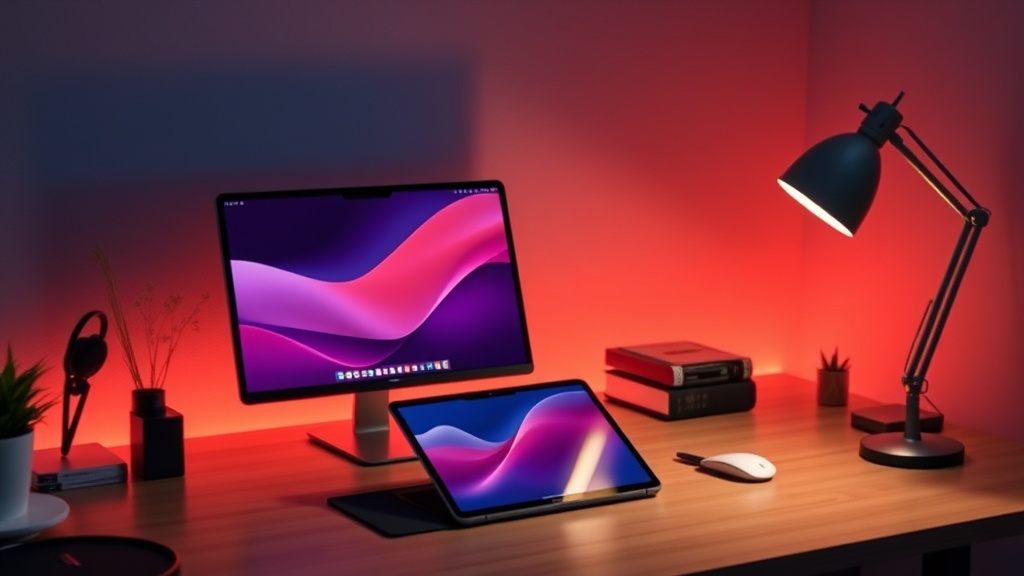
Beyond the Screen: Building the Perfect Minimalist Desk Setup with iPad Pro

A cluttered desk often leads to a cluttered mind. Imagine a workspace where a tangled web of HDMI cables, a bulky mechanical keyboard, and a heavy laptop stand compete for every square inch of surface area. The moment a notification pings, the visual noise of the peripheral mess becomes a distraction rather than a tool. For those seeking a streamlined workflow, the goal isn't just to own expensive hardware, but to integrate it so seamlessly that the technology disappears into the environment.
The iPad Pro, particularly the latest M4 models, has transitioned from a secondary consumption device into a legitimate centerpiece for a minimalist desk setup. However, relying solely on the tablet often reveals the friction points of the iPadOS ecosystem. To build a truly functional minimalist station, one must move beyond the assumption that the iPad is a "laptop replacement" and instead treat it as a highly specialized, high-performance hub.
The Core: Selecting the Right iPad Pro Configuration
The foundation of a minimalist setup is the hardware itself. When building around the iPad Pro, the choice between the 11-inch and 13-inch models dictates the entire geometry of your desk. The 13-inch model provides the screen real estate necessary for true multitasking via Stage Manager, making it a viable secondary or primary display. However, the 11-inch model offers a much higher degree of portability, which is essential if your "desk" is actually a coffee shop table in Soho or a small corner in a shared studio.
For a stationary desk setup, the 13-inch model is the superior choice due to the increased verticality. It allows for more lines of code in Xcode or more layers in Procreate without constant scrolling. When selecting your model, prioritize the Nano-texture glass option if you frequently work in brightly lit environments or near large windows. The reduction in glare is not just a luxury; it is a functional necessity for maintaining focus during long deep-work sessions.
The Peripheral Dilemma: Keyboard and Input
A common mistake in minimalist setups is choosing peripherals that are aesthetically pleasing but functionally limited. The Apple Magic Keyboard is the gold standard for a reason: the integration of the trackpad and the seamless connection via the Smart Connector eliminates the need for Bluetooth pairing fatigue. However, it is heavy and lacks the tactile feedback some professionals require.
If your workflow involves heavy text entry, consider a compact mechanical keyboard like the Logitech MX Mechanical Mini. It provides a tactile response that the Magic Keyboard lacks, yet maintains a low profile that doesn't overwhelm the desk. Pair this with a high-precision mouse or trackpad. While the iPad's native support for the Magic Trackpad is excellent, many users find that a dedicated mouse provides better precision for complex tasks in apps like Adobe Illustrator or Final Cut Pro.
Optimizing the Visual Experience
A minimalist desk should not be a single-screen experience if your productivity demands it. The iPad Pro excels as a secondary display, but it requires specific hardware to function effectively as a central hub. To expand your workspace, you should look toward USB-C docking stations that support DisplayPort Alt Mode.
Instead of a traditional monitor, consider using the iPad Pro as your primary screen and connecting a high-resolution external display via a single cable. This creates a dual-screen environment where the iPad acts as a touch-sensitive control surface for your main monitor. This setup is particularly effective for creators who use the Apple Pencil for precision work on the iPad while keeping their primary timeline or coding environment on the larger screen.
"The goal of a minimalist setup is not to have less, but to have exactly what is necessary and nothing more. Every cable should have a purpose, and every device should serve a specific function in your cognitive workflow."
Lighting and Ergonomics
Lighting is the most overlooked element of a desk setup. Harsh overhead lights create shadows and eye strain. To maintain a professional, focused atmosphere, implement layered lighting. A monitor light bar, such as those produced by BenQ, can illuminate your workspace without casting glare onto the iPad'-s glass surface. This provides localized task lighting that keeps your eyes focused on the screen rather than the surrounding room.
Ergonomics are equally critical. Because the iPad Pro is inherently thin, using it flat on a desk for extended periods is a recipe for neck strain. A dedicated stand is non-negotiable. While the Magic Keyboard provides a built-in stand, a more robust solution like the Satechi Aluminum Stand or a dedicated VESA mount allows you to elevate the device to eye level. This elevation is crucial for maintaining a neutral spine position during long sessions of document editing or digital sketching.
Cable Management: The Silent Productivity Killer
Nothing breaks the "minimalist" illusion faster than a "cable nest" beneath your desk. Even with the iPad Pro's single USB-C port, you will likely need to connect power, external drives, or displays. To manage this, move away from standard plastic cable ties and toward reusable solutions.
- Magnetic Cable Organizers: Use small magnetic clips on the edge of your desk to keep your USB-C charging cable from sliding off when not in use.
- Braided Cables: Opt for high-quality, braided USB-C cables. They are more durable and look significantly more professional than the standard white plastic cables that come in the box.
- Under-Desk Trays: If you use a docking station, mount it to the underside of your desk using heavy-duty command strips or a dedicated cable management tray. This keeps the power brick and the clutter completely out of sight.
Software Integration and Workflow Efficiency
Hardware is only half the battle. A minimalist setup is wasted if your software experience is cluttered and inefficient. To truly leverage the iPad Pro, you must master Stage Manager. This feature allows you to create overlapping windows and groups, effectively mimicking a desktop environment. Instead of switching between full-screen apps, you can keep your Slack, Safari, and Notes windows organized in logical groups.
For those moving from a Mac-centric workflow, it is important to recognize the limitations of iPadOS. While you can perform many of the same tasks, the file management system is different. Using the Files app effectively—integrating iCloud Drive with external SSDs—is essential for a seamless transition between your mobile and stationary setups. If you are looking for more advanced productivity tools, you might find interest in essential productivity apps that bridge the gap between mobile and desktop workflows.
The Role of Automation
A truly high-level setup uses automation to reduce manual input. On the iPad, this means utilizing Shortcuts. You can create a "Work Mode" shortcut that, with a single tap, turns on your smart desk lamp, opens your primary work apps, and sets your Focus Mode to "Do Not Disturb." This reduces the cognitive load required to transition from a state of rest to a state of deep work.
Furthermore, if you are integrating the iPad into a larger ecosystem, ensure your Apple Watch and iPhone are configured to work in tandem. Using the iPhone as a high-quality webcam via Continuity Camera is a professional-grade trick that eliminates the need for an external webcam, keeping your desk even cleaner.
Conclusion: The Intentional Workspace
Building a minimalist desk setup with the iPad Pro is not about achieving a specific "aesthetic" seen on social media. It is about intentionality. It is about choosing tools that enhance your ability to focus rather than providing more distractions. By selecting high-quality peripherals, managing your cables with precision, and mastering the software capabilities of the iPad, you create a workspace that serves your ambitions rather than cluttering your environment.
Whether you are a designer, a writer, or a developer, the iPad Pro offers a unique intersection of power and simplicity. When configured correctly, it becomes more than just a tablet—it becomes the centerpiece of a highly efficient, professional workstation that is as visually pleasing as it is functionally robust.