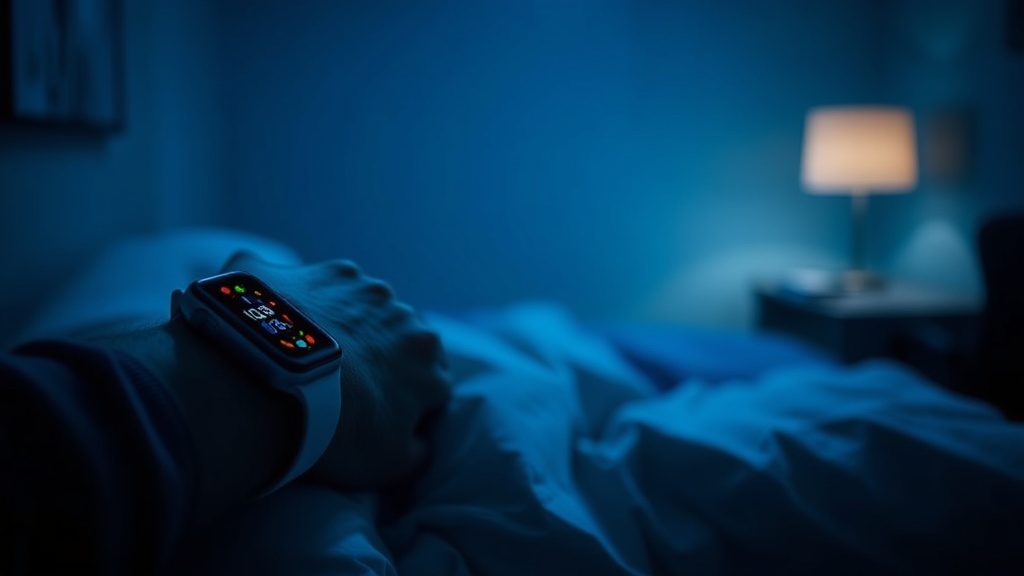
Optimize Your Apple Watch for Better Sleep and Recovery

Most people assume that wearing an Apple Watch to bed is a passive act of data collection, but that’s a mistake. If you just strap it on and go to sleep without adjusting your settings, you're likely missing the most valuable physiological data the device can provide. This guide covers how to configure your Apple Watch, your iPhone, and your environment to turn a standard wearable into a high-fidelity recovery tool. We'll look at sensor accuracy, battery management, and the specific settings that turn raw numbers into actionable rest.
The truth is, the hardware is only half the battle. The real magic happens in the software tuning. If your watch isn't calibrated to your actual lifestyle, you're just looking at pretty graphs that don't actually mean much.
How Do I Improve My Sleep Tracking Accuracy?
To improve accuracy, you must ensure the watch is worn snugly on the wrist and that your "Sleep Focus" is properly automated. A loose fit is the number one reason for heart rate spikes or missed respiratory data during the night. If the sensor has even a tiny gap between your skin and the glass, the green LED light—which tracks your heart rate—will fail to read your pulse accurately.
First, let's talk about the physical fit. I've seen plenty of users complain about "bad data" when, in reality, they were wearing a braided Solo Loop that was a notch too loose. For the most precise readings, especially for heart rate variability (HRV), a slightly tighter fit is better—just don't cut off your circulation. (Trust me, I've seen the results of bad sleep-tracking habits during my time at the Genius Bar.)
Next, you need to optimize your software settings. Go to the Watch App on your iPhone and look at the Sleep section. You want to make sure "Sleep Stages" is toggled on. Without this, you're just getting a basic movement tracker rather than a deep dive into your REM and Core sleep cycles.
Here is a quick checklist for setting up your device for maximum accuracy:
- Tighten the band: Ensure the watch is one notch tighter than your daytime setting.
- Enable Sleep Focus: This silences notifications that can trigger micro-awakenings you might not even remember.
- Check Sensor Access: Ensure the Health app has full permission to access all sensor data.
- Calibrate with Movement: Wear the watch during your daily workouts to help the algorithm better understand your baseline.
It's also worth noting that the Apple Watch uses the Photoplethysmography (PPG) method to track blood volume changes. This is why skin tone and even temperature can affect readings, though Apple's latest algorithms are incredibly sophisticated at filtering out noise.
Does the Apple Watch Track Recovery or Just Sleep?
When you look at the Health app, don't just look at how many hours you slept. Look at your HRV. A high HRV generally means your body is in a parasympathetic state (rest and digest), while a significant drop often signals that you're overtraining, fighting an illness, or haven't recovered from your last intense session. It's a subtle metric, but it's the gold standard for recovery tracking.
If you're someone who tracks their training heavily, you'll want to monitor these three metrics daily:
- Resting Heart Rate (RHR): Your baseline during sleep. If this is 5-10 beats higher than usual, take it easy today.
- HRV (Heart Rate Variability): The variation in time between heartbeats. Higher is usually better for recovery.
- Respiratory Rate: Changes here can indicate physical stress or even the onset of a cold.
If you find your RHR is consistently climbing, it might be time to look at your lifestyle factors—caffeine intake, late-night meals, or even your room temperature. The watch is a mirror, not a doctor. It tells you what is happening, but it won't tell you why it's happening.
How Can I Prevent My Apple Watch From Waking Me Up?
You can prevent unwanted interruptions by setting up an automated "Sleep Schedule" and using the "Do Not Disturb" feature via Focus Modes. The goal is to eliminate "phantom" notifications and bright screen light that can disrupt your circadian rhythm.
The biggest culprit for sleep disruption isn't actually the watch itself—it's the iPhone. If your phone is sitting on your nightstand and an email notification triggers a bright screen, your Apple Watch is essentially a high-tech alarm clock that's constantly reminding you of the world. Use the Focus settings to ensure that your watch and phone are in total sync. When your Watch enters "Sleep Focus," your iPhone should too.
One thing I always tell people: if you're a light sleeper, the "Taptic Engine" (the vibration motor) can be a double-edged sword. While it's great for a gentle wake-up call, a random notification vibration can pull you right out of a deep sleep cycle. You can actually customize these haptics to be much subtler.
Consider this comparison when deciding how to manage your nighttime tech usage:
| Feature | Standard Mode | Optimized Sleep Mode |
|---|---|---|
| Notifications | All apps enabled | Only Emergency Contacts |
| Screen Brightness | Standard/Auto | Dimmed/Dark Mode |
| Haptic Feedback | Standard Vibration | Subtle/Silent |
| Wrist Brightness | High | Minimum (to avoid light leakage) |
On the flip side, if you find that the watch is too uncomfortable to wear at night, you might consider a more breathable band. The silicone Solo Loop is great, but if you sweat a lot, it can cause skin irritation. A nylon loop or even a specialized "Sleep Band" can make a massive difference in how much you actually enjoy wearing the device during the night.
If you're looking to optimize your entire desk or bedroom setup to support better habits, check out our guide on minimalist desk accessories to see how a cleaner environment can help your mental transition into rest.
One final tip: don't obsess over the data. I've seen people get "orthosomnia"—a term for the anxiety caused by trying to achieve perfect sleep metrics. The Apple Watch is a tool to help you understand your body, not a judge to tell you if you've "failed" at sleeping. If you had a bad night, the data will show it, but don't let the numbers dictate your mood for the next day.
If you're worried about the battery life impact of all these sensors, remember that the Apple Watch Series 9 and Ultra 2 have significantly better efficiency than older models. Just make sure you aren't charging it in the middle of the night—if you do, you'll miss the most important part of the data cycle. Charge it while you're getting ready in the morning or during your post-work wind-down instead.