7 Best Accessories to Make Your iPad Feel Like a Laptop

The Magic Keyboard for Seamless Typing
Bluetooth Mice for Precision Navigation
USB-C Hubs to Expand Your Ports
External Monitors for Extra Screen Real Estate
Portable SSDs for Massive File Storage
Apple Pencil for Precise Design Work
Ergonomic Stands for Better Viewing Angles
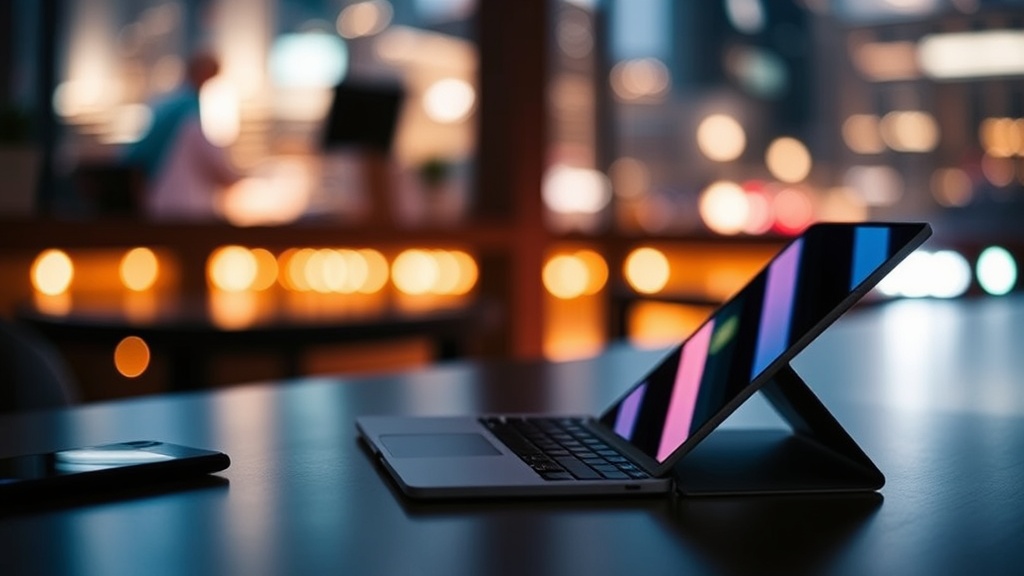
The iPad Pro sits on a cafe table, a sleek slab of aluminum and glass that looks impressive but lacks the tactile utility of a MacBook. You reach out to type a long-form email, only to realize that tapping a glass screen with your fingertips is slow, imprecise, and frankly, exhausting. This is the fundamental gap between a tablet and a laptop: the interface. To bridge this gap, you need hardware that introduces physical feedback, precise navigation, and expanded connectivity. This guide identifies the seven best accessories to transform your iPad from a consumption device into a high-productivity workstation.
1. The Apple Magic Keyboard
If you want the most seamless experience, the Apple Magic Keyboard is the industry standard for a reason. Unlike third-party options that often feel like cheap plastic imitations, the Magic Keyboard utilizes a cantilever design that allows you to adjust the viewing angle with precision. The key travel is tactile and responsive, mimicking the typing experience of a MacBook Air. Most importantly, the integrated trackpad supports multi-touch gestures natively, meaning you can swipe between apps or pinch-to-zoom with the same fluidity you expect from macOS.
However, there is a trade-off. The Magic Keyboard adds significant weight to your setup, often making the iPad feel more like a heavy laptop than a portable tablet. It also lacks a dedicated function row for certain specialized shortcuts, though the ability to use the trackpad for precise cursor control is a game-changer for spreadsheet work or video editing. If you are looking to transform your iPad into a professional studio, this is your foundational piece of hardware.
2. Logitech Combo Touch
For users who find the Magic Keyboard too restrictive, the Logitech Combo Touch offers a more versatile alternative. While the Apple version is a single unit, the Logitech system features a detachable keyboard and a slim folio case. This is critical for users who need to switch between typing a report and using an Apple Pencil to sketch or annotate a PDF. The keyboard provides a similar typing experience to the Magic Keyboard, but the ability to strip the keyboard away leaves you with a lightweight, protected tablet.
The standout feature here is the built-in trackpad, which is highly responsive to iPadOS gestures. One drawback to watch for is the thickness of the case; it is bulkier than the Magic Keyboard, which might deter those looking for maximum portability. If your workflow involves frequent transitions between heavy typing and digital illustration, the modularity of the Combo Touch makes it a superior choice over Apple's proprietary solution.
3. Satechi USB-C Multimedia Hub
The biggest limitation of the modern iPad is the single USB-C port. If you are using a keyboard and a charging cable, you have effectively locked yourself out of any other peripherals. This is where a high-quality USB-C hub becomes non-negotiable. The Satechi Multimedia Hub expands your iPad’s capabilities by adding HDMI ports, USB-A ports, and an SD card slot.
This allows you to connect your iPad to an external monitor for a desktop-class experience or plug in a standard USB flash drive to transfer large files. If you are a photographer or videographer, the SD card slot is essential for moving assets directly into apps like LumaFusion or Lightroom. When using a hub, be mindful of power draw; I recommend using a hub that supports pass-through charging so you can keep your iPad topped up while simultaneously using your peripherals.
4. Logitech MX Master 3S (via Bluetooth)
While the trackpad on the Magic Keyboard is excellent for general navigation, it lacks the ergonomic support and precision required for high-level design or long-form data entry. The Logitech MX Master 3S is arguably the best productivity mouse on the market, and it pairs exceptionally well with iPadOS. The precision sensor works flawlessly on almost any surface, and the ergonomic thumb rest prevents the wrist fatigue common with standard mobile mice.
The MX Master 3S features a customizable scroll wheel that can toggle between high-speed scrolling and ratcheted precision. This is incredibly useful when navigating long documents or complex timelines in video editing software. Because it connects via Bluetooth, you don't need to carry a dongle, keeping your setup clean. Just remember that while the cursor is highly accurate, iPadOS still treats the mouse as a pointer rather than a true desktop cursor, so some "hover" states may behave differently than on a Mac.
5. Apple Pencil (2nd Generation or Pro)
A laptop is defined by its input methods. While a mouse handles precision clicking, the Apple Pencil provides the precision of a stylus, which is essential for tasks that a keyboard cannot touch. Whether you are signing legal documents, annotating architectural blueprints, or performing digital art, the Apple Pencil turns the iPad into a highly specialized tool. The low latency and pressure sensitivity make it feel much more natural than any third-party stylus.
The second-generation Pencil (and the newer Pencil Pro) offers magnetic pairing and wireless charging directly onto the side of the iPad, ensuring you never run out of juice in the middle of a project. If your work involves more than just typing—such as detailed photo retouching or mathematical notation—the Apple Pencil is the most important investment you can make to move beyond the "consumption" mindset.
6. External SSD (Samsung T7 or SanDisk Extreme)
iPadOS has improved significantly in how it handles external storage, but you still need hardware that can keep up with high-speed data transfers. If you are working with 4K video files or large high-resolution photo libraries, the internal storage of your iPad will fill up rapidly. An external SSD like the Samsung T7 provides the necessary read/write speeds to work directly off the drive without frustrating lag.
Using an external SSD effectively turns your iPad into a mobile workstation capable of handling massive datasets. You can plug the drive into your USB-C hub, and it will appear immediately in the Files app. This is a vital workflow for creators who travel frequently and cannot rely on cloud storage speeds or the limited internal capacity of their iPad Pro or Air models.
7. A Dedicated USB-C Charging Station
When you are running a keyboard, a hub, an SSD, and an iPad, power management becomes a full-time job. A standard 20W brick is often insufficient for a heavy-duty setup. I recommend a high-wattage GaN (Gallium Nitride) charger, such as those from Anker or Satechi, that offers multiple USB-C ports. These chargers are much smaller than traditional power bricks but can output 65W or even 100W of power.
A multi-port charging station allows you to charge your iPad, your iPhone, and your peripherals all from a single wall outlet. This reduces cable clutter and ensures that even when you are using a power-hungry USB-C hub, your iPad receives enough current to maintain its battery level. It is a small detail, but it is the difference between a reliable workstation and a device that constantly dies during a critical task.
Transforming an iPad into a laptop-replacement is about layering functionality. By combining a high-quality keyboard with expanded connectivity and specialized input devices, you move from a device that is merely "handy" to a device that is truly "productive." Choose your accessories based on your specific bottleneck—whether that is typing speed, storage, or screen real estate—and you will find the iPad becomes the most versatile tool in your tech arsenal.