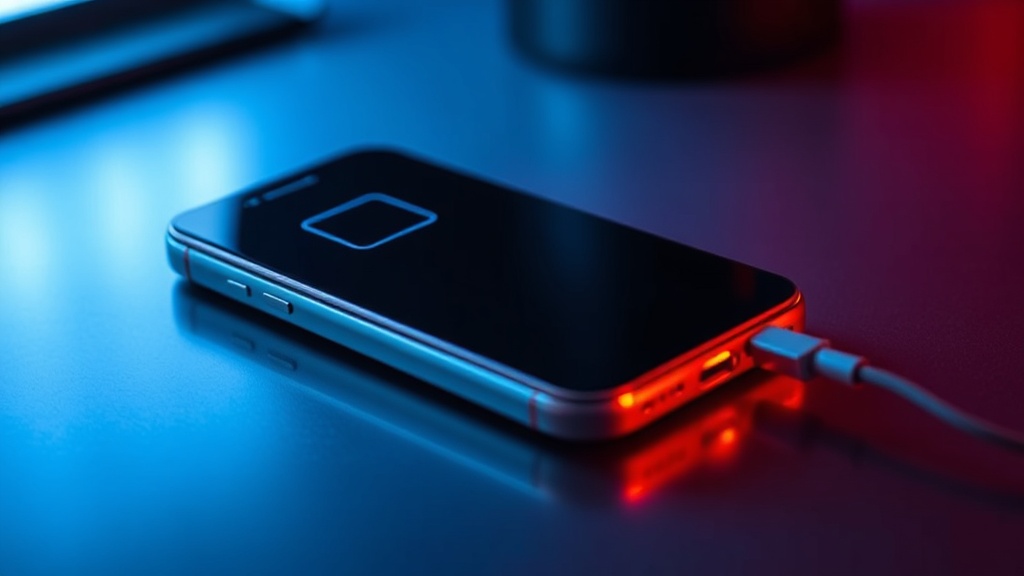
Why Your iPhone Is Getting Hot While Charging

Many iPhone users believe that a warm device during a charging cycle is a sign of a defective battery or a failing hardware component. This is a misconception. In reality, heat is a natural byproduct of the electrochemical process involved in recharging lithium-ion batteries. While a slight warmth is normal, excessive heat can degrade your battery's long-term health and, in extreme cases, trigger safety shutdowns. Understanding whether your iPhone is behaving normally or if you have a genuine hardware issue is essential for protecting your investment.
The Science of Heat and Fast Charging
The primary reason your iPhone feels warm while plugged in is the conversion of electrical energy into chemical energy. When you use high-wattage power adapters—such as the 20W or 30W USB-C bricks—the device undergoes a process called rapid charging. During this phase, the iPhone draws a higher current to fill the battery capacity quickly. This high current generates thermal energy through internal resistance within both the battery cells and the charging circuitry.
Apple’s power management system is designed to throttle this speed based on temperature. If you notice your iPhone 15 Pro or iPhone 14 charging significantly slower after reaching 50% or 80%, it is because the iOS software is intentionally slowing down the current to prevent the device from overheating. This is a protective measure, not a bug. If you are using a MagSafe charger, you may notice even more heat. Because MagSafe relies on induction rather than a direct physical connection, energy is lost as heat during the wireless transfer process, making inductive charging inherently less efficient and warmer than a standard USB-C cable.
Common Culprits Behind Excessive Heat
While some heat is expected, certain external factors can exacerbate the temperature rise to uncomfortable or even dangerous levels. Identifying these culprits can help you troubleshoot without needing a trip to the Apple Store.
1. Heavy Background Processes
If you are using your iPhone for intensive tasks while it is plugged in, you are essentially asking the device to perform two high-energy tasks simultaneously: powering the hardware and replenishing the battery. Using GPS navigation in Apple Maps, playing high-fidelity games like Genshin Impact, or rendering a 4K video in LumaFusion while charging will cause the processor (SoC) to generate heat, which is then compounded by the charging heat. This dual-load scenario is a frequent cause of overheating.
2. Poor Thermal Dissipation from Cases
Many premium cases, particularly those made of thick silicone, heavy-duty TPU, or leather, act as insulators. While they protect your iPhone from drops, they also trap heat. If you use a MagSafe-compatible case that is particularly thick, it can impede the ability of the iPhone's chassis to dissipate heat into the air. This is especially prevalent during wireless charging, where the lack of direct contact makes thermal management more difficult.
3. Environmental Factors
The ambient temperature of your environment plays a massive role. Charging your iPhone in a car parked in direct sunlight or on a soft surface like a bed or a sofa can lead to rapid heat buildup. Soft surfaces like blankets or pillows wrap around the device and prevent air circulation, effectively creating a thermal trap. Always charge your device on a hard, flat surface like a wooden desk or a nightstand to ensure maximum airflow.
How to Protect Your Battery Health
Since heat is the number one enemy of lithium-ion battery longevity, taking proactive steps can extend the number of years your iPhone remains functional. If you ignore high temperatures, you will likely see a faster decline in "Maximum Capacity" within your Battery Health settings.
- Enable Optimized Battery Charging: Go to Settings > Battery > Battery Health & Charging and ensure "Optimized Battery Charging" is toggled on. This feature learns your daily charging routine and waits to finish charging past 80% until you need it, reducing the time the battery spends in a high-voltage, high-heat state.
- Use Certified Accessories: Always use MFi (Made for iPhone) certified cables and power adapters. Low-quality, third-party chargers often lack the sophisticated voltage regulation found in Apple-standard hardware, which can lead to inconsistent power delivery and excessive heat.
- Avoid "Gaming While Charging": If you need to play a demanding game or record high-resolution video, try to do so while the phone is not plugged in, or use a low-wattage charger to minimize the thermal load.
- Remove the Case During Fast Charging: If you notice your phone getting uncomfortably hot during a 20W fast charge, remove the protective case. This simple step allows the aluminum or stainless steel frame of the iPhone to act as a heat sink more effectively.
When to Be Concerned: Hardware vs. Software
It is important to distinguish between "normal warmth" and a "malfunctioning battery." If your iPhone is merely warm to the touch, it is likely operating within its design parameters. However, there are specific red flags that indicate a genuine hardware issue.
Watch for these warning signs:
- The "Temperature Warning" Screen: If your iPhone displays a black screen with a warning that it "Needs to cool down before you can use it," the device has hit a critical thermal threshold. While this can happen during heavy use, if it occurs during standard charging in a cool room, your battery or charging port may be failing.
- Physical Swelling: If you notice the screen lifting away from the frame or if the back of the phone looks slightly bowed, your battery is likely swelling. This is a dangerous situation caused by gas buildup within the cell. Stop using the device immediately and contact Apple Support.
- Rapid Percentage Drops: If your iPhone goes from 40% to 10% in a matter of minutes while charging or immediately after being unplugged, the battery's ability to hold a charge has been compromised by heat damage.
If you find that your device is consistently overheating regardless of the environment or the apps being used, it may be helpful to check your battery statistics. For instance, if you are managing a complex workflow with multiple apps running, you might want to review how to use iPhone Stage Manager for better multitasking to ensure you aren't overtaxing your system resources unnecessarily. Managing how your apps interact can sometimes lower the overall computational load, which in turn reduces heat.
The Impact of Software Updates on Temperature
Occasionally, a new version of iOS can introduce bugs that cause high CPU usage, leading to heat during charging. If you have recently updated your iPhone and noticed an immediate spike in temperature during a charge, check your background App Refresh settings. Go to Settings > General > Background App Refresh and disable it for apps that do not need to be constantly updating. This reduces the number of processes running while the device is idle and charging.
Furthermore, ensure that your apps are also updated. An unoptimized app running on a new version of iOS can cause "runaway processes," where the app consumes excessive power and generates heat. Keeping both your operating system and your third-party applications up to date ensures that the power management protocols are as efficient as possible.
Final Verdict
A warm iPhone is rarely a reason for panic. In the majority of cases, it is a sign that your fast charger and your iPhone's battery are working exactly as intended. By being mindful of your charging environment, using high-quality MFi accessories, and avoiding heavy multitasking while plugged in, you can mitigate heat and preserve your battery's long-term health. However, if the heat is accompanied by a system warning or physical deformation, treat it as a hardware failure rather than a software quirk.