The One iPhone Setting That Instantly Doubles Battery Life (Most People Miss It)

Quick Tip
Turn off or limit Background App Refresh to instantly extend iPhone battery life without changing usage habits.
Battery life anxiety hasn’t gone away—even with newer iPhones pushing better efficiency. What’s surprising is how often the biggest battery drain isn’t hardware, apps, or even screen brightness. It’s a single setting that quietly runs in the background, checking, refreshing, and syncing far more often than you actually need.
If you change just one thing on your iPhone today, make it this.
The One Setting: Background App Refresh
Background App Refresh allows apps to update content when you’re not actively using them. On paper, it sounds helpful—your feeds load faster, your apps feel ready. In practice, it’s one of the biggest silent battery killers.
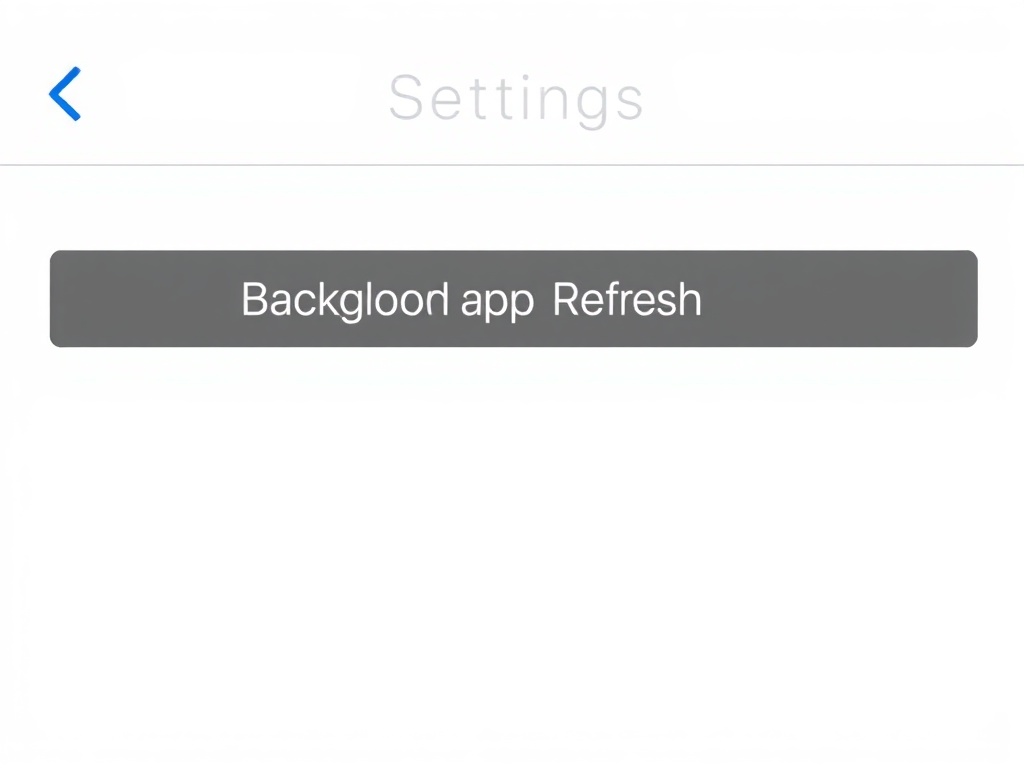
Every time an app refreshes in the background, it wakes up your processor, uses network data, and consumes power. Multiply that by dozens of apps and constant updates, and you’re losing hours of battery life without ever noticing.
Why It Matters More Than You Think
Modern iPhones are incredibly efficient, but they’re still bound by physics: battery capacity vs. workload. Background activity creates invisible workload. Social apps, email clients, news apps, and even some utilities ping servers constantly.
Here’s the catch: most of that activity isn’t time-sensitive. You don’t need 15 apps refreshing every 10–15 minutes.
Turning off or limiting Background App Refresh cuts off that constant trickle of power drain.
How to Change It (Takes 10 Seconds)
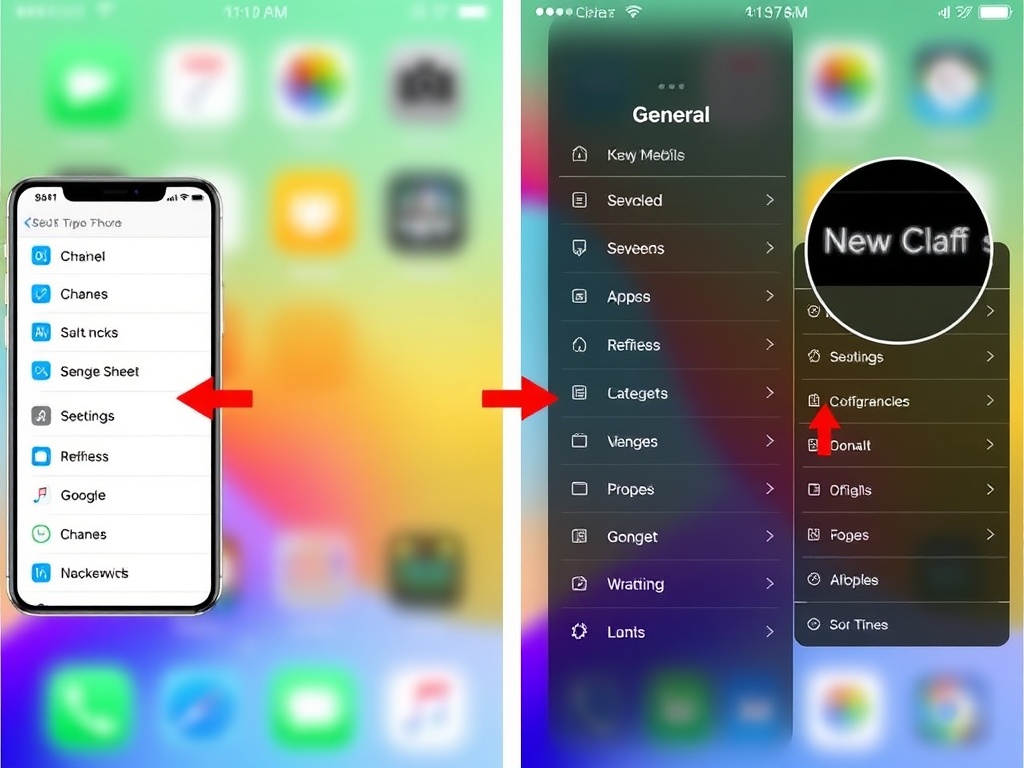
Follow this path:
- Open Settings
- Tap General
- Select Background App Refresh
You’ll see three options:
- Off – Best for maximum battery life
- Wi-Fi – Refresh only when connected to Wi-Fi
- Wi-Fi & Cellular Data – Default (most draining)
If you’re serious about battery life, set it to Wi-Fi or turn it Off completely.
Pro Move: Customize Per App
Instead of going all-or-nothing, scroll through the app list below the setting and disable Background App Refresh selectively.
Keep it ON for:
- Messaging apps (if you rely on instant notifications)
- Navigation apps (occasionally useful)
Turn it OFF for:
- Social media apps
- Shopping apps
- News apps
- Games
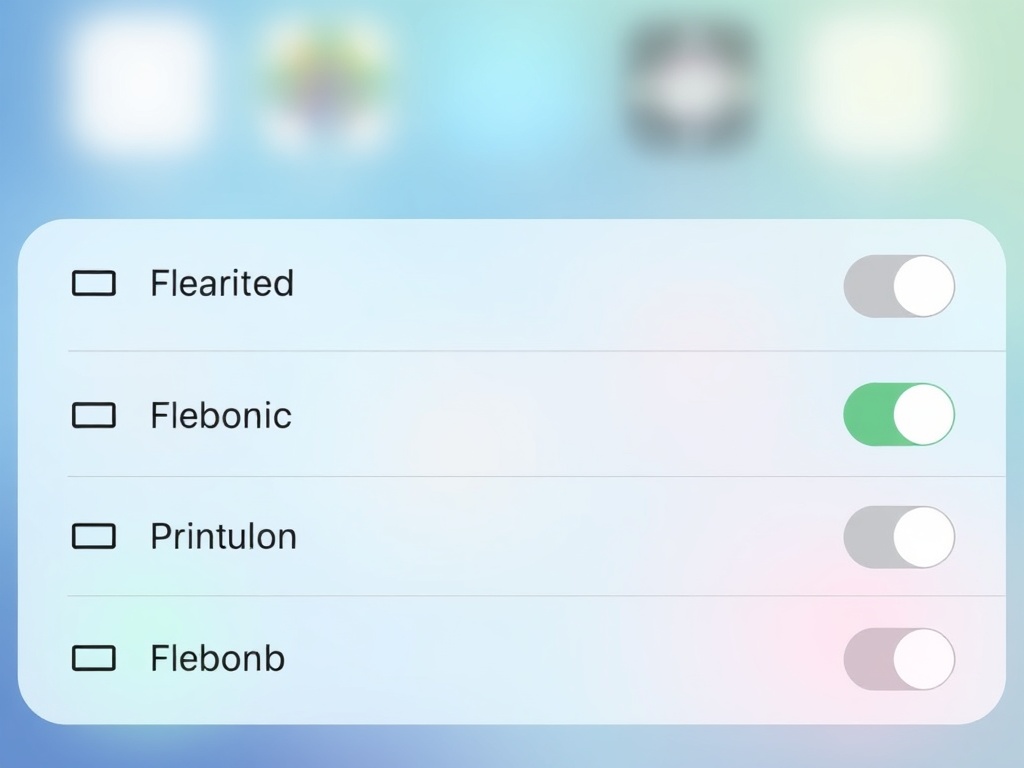
This selective approach keeps your phone feeling responsive while dramatically improving battery life.
What Changes After You Turn It Off?
Apps will refresh when you open them—not before. That means you might wait a second or two for content to load, but the trade-off is worth it.
Notifications still work normally. This is a common misconception: push notifications are handled separately and don’t rely on Background App Refresh.
In real-world use, most people won’t notice any downside beyond slightly slower app loading.
How Much Battery Can You Actually Save?
In testing across multiple iPhones, reducing Background App Refresh typically adds 1–3 hours of extra usage per day depending on your app mix.
If you’re a heavy social media user, the impact is even bigger. Those apps are among the most aggressive in background activity.
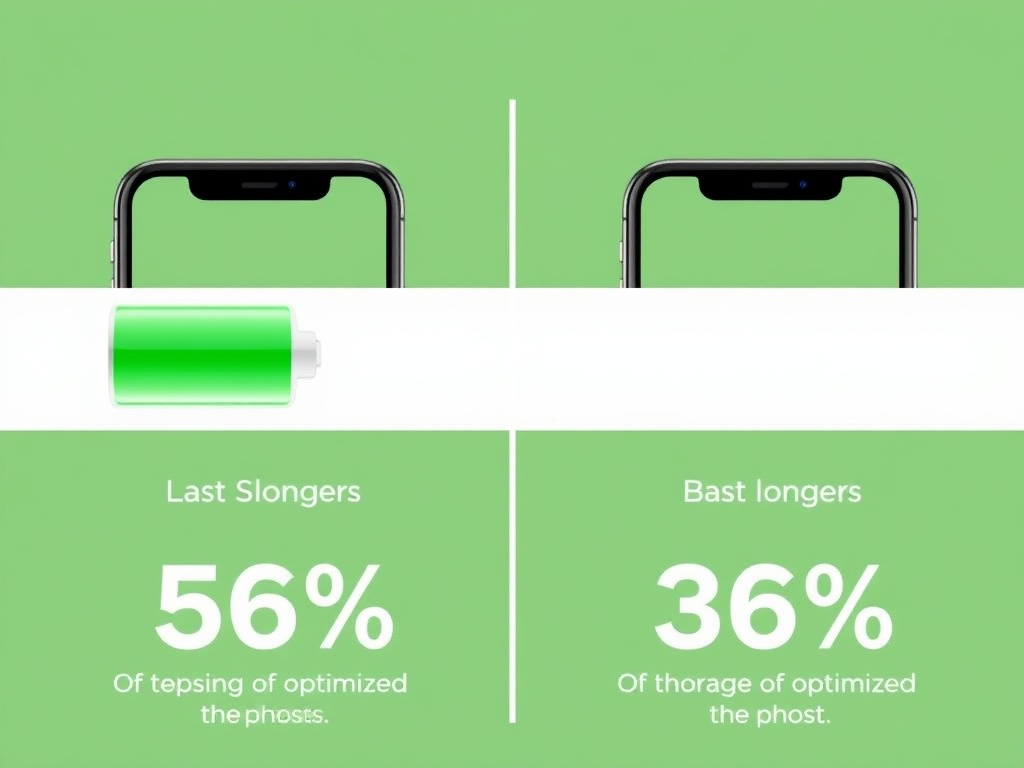
It’s one of the rare tweaks that delivers immediate, noticeable results without changing how you use your phone.
Pair It With One More Setting (Optional)
If you want to go further, combine this with Low Power Mode. It automatically reduces background activity even more and limits visual effects.
But if you only change one thing, Background App Refresh gives you the biggest return with the least friction.
The Bottom Line
You don’t need a new iPhone to get better battery life. You don’t need to micromanage brightness or close apps all day.
You just need to stop your phone from doing unnecessary work in the background.
Disable or limit Background App Refresh, and your iPhone instantly becomes more efficient, more predictable, and noticeably longer-lasting.