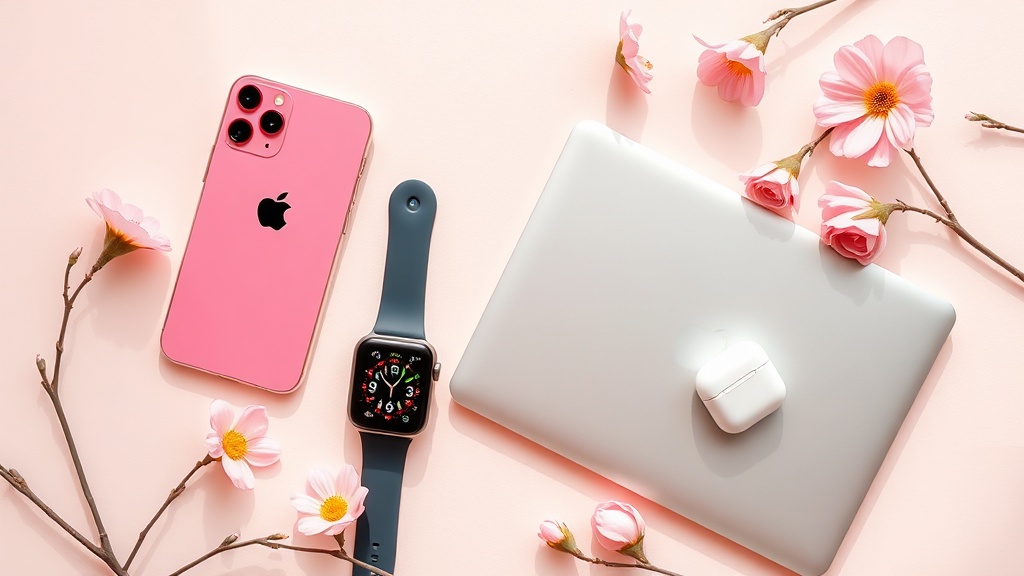
Spring Tech Refresh: 5 Simple Upgrades to Freshen Your Apple Setup

Ready to shake off the winter blues and give your Apple devices a fresh spring boost? Whether you’re a longtime fan or a recent convert, a few thoughtful tweaks can make your iPhone, Mac, and wearables feel brand‑new this March.
Why does a spring tech refresh matter?
Just like your wardrobe, your tech setup can get stuck in old habits. A quick seasonal audit helps you stay secure, improve battery life, and take advantage of the latest Apple features that are perfect for the longer days ahead.
What are the five simple upgrades you can make right now?
1. Update to iOS 26 and explore the new Focus Modes for spring
Apple’s iOS 26 rollout adds customizable Focus Modes that let you filter notifications by activity. Set a “Morning Walk” mode that silences work alerts while highlighting health data, or a “Garden Time” mode that surfaces weather and HomeKit controls. I’ve already broken down the best tips for getting the most out of this feature.
2. Refresh your Apple Watch health rings with spring‑time goals
Spring is the perfect time to reset your Move, Exercise, and Stand rings. Try a “30‑minute outdoor walk” goal and pair it with the new Apple Watch Ultra 3’s enhanced GPS for accurate distance tracking. If you’re on a Series 10, the updated Workout app now shows real‑time elevation, great for hill climbs.
3. Clean up your HomeKit scenes for a brighter home
Open the Home app and prune any stale automations. Add a “Spring Sunrise” scene that gradually raises blinds, turns on warm‑white lights, and starts a gentle playlist on your HomePod. My recent watch comparison shows the Ultra 3’s deeper battery life, making it ideal for all‑day scene control.
4. Optimize battery health on your iPhone 17e
Go to Settings → Battery → Battery Health & Charging and enable “Optimized Battery Charging.” This feature learns your charging patterns and delays full charge until you need it, extending lifespan—especially useful as you spend more time outdoors this season.
5. Declutter your MacBook’s desktop and enable “Stage Manager”
Spring cleaning isn’t just for closets. Hide unnecessary icons, organize files into folders, and turn on macOS’s Stage Manager to keep windows tidy. If you’re still on an M4 MacBook Air, consider the new M5 upgrade for smoother multitasking.
How can you keep this momentum going?
Schedule a quick 15‑minute review each week in March. Check for new iOS patches, reassess your Watch goals, and make sure your HomeKit accessories are still synced. Small, regular checks prevent tech fatigue and keep your Apple ecosystem humming.
Takeaway
Spring doesn’t have to be just about flowers and fresh air—it’s also a great excuse to fine‑tune the devices you rely on daily. Update, declutter, and set seasonal goals, and you’ll feel the difference the moment you pick up your iPhone or glance at your wrist.
Steps
- 1
Update to iOS 26 and set up a Spring Focus Mode
Install iOS 26, open Settings → Focus, create a new mode (e.g., “Garden Time”), and customize allowed apps and contacts.
- 2
Refresh Apple Watch health rings with seasonal goals
Open the Workout app, choose a new goal like a 30‑minute outdoor walk, and enable GPS tracking on your Ultra 3 or Series 10.
- 3
Clean up HomeKit scenes
In the Home app, delete old automations, then add a “Spring Sunrise” scene that raises blinds, sets warm lighting, and plays a sunrise playlist.
- 4
Enable Optimized Battery Charging on iPhone 17e
Navigate to Settings → Battery → Battery Health & Charging and toggle Optimized Battery Charging to extend battery lifespan.
- 5
Declutter MacBook desktop and enable Stage Manager
Remove unused icons, organize files, then go to System Settings → Desktop & Dock → Stage Manager and turn it on.