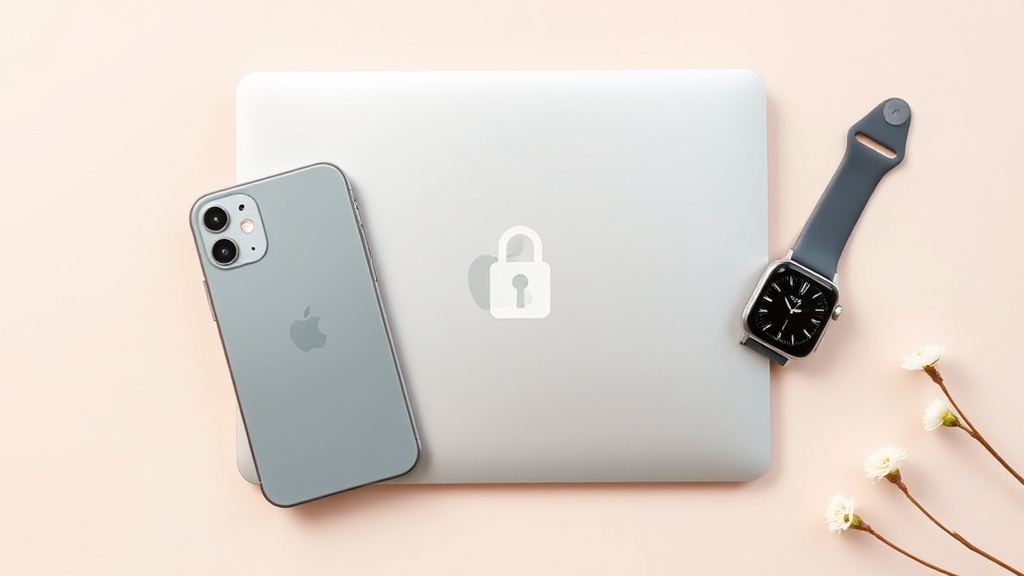
Spring Apple Security Checklist: 7 Must‑Do Settings for iOS 26, macOS 14, and watchOS 10

Spring Apple Security Checklist: 7 Must‑Do Settings for iOS 26, macOS 14, and watchOS 10
Hook:
Did you know a single unchecked privacy toggle can expose *every* photo, message, and location you store on your Apple devices?
Context:
Spring isn’t just about fresh décor or a new wardrobe; it’s the perfect time to tighten the digital locks on the tech you rely on every day. As iOS 26, macOS 14, and watchOS 10 roll out new features, a quick security sweep can keep your data safe without sacrificing the seamless Apple experience you love.
What are the top 7 security settings I should enable right now?
1. Is two‑factor authentication (2FA) still off?
Two‑factor authentication is the backbone of Apple Account protection. If you haven’t turned it on, a hacker with your password can still hijack your account.
How to enable: Settings → your name → Password & Security → Turn On Two‑Factor Authentication.
Why it matters: 2FA prevents unauthorized access even if your password is compromised. Apple’s official guide confirms it limits sign‑ins to trusted devices【Apple Support - Two‑factor authentication】.
2. Do I have “App Tracking Transparency” (ATT) set to “Ask” for all apps?
iOS 26 expands ATT, letting you deny apps from tracking you across other services.
How to enable: Settings → Privacy & Security → App Tracking Transparency → toggle Ask App to Request Permission.
Why it matters: ATT blocks hidden data brokers, reducing the risk of profile building. Wired’s 2025 privacy roundup highlights ATT as a key defense against cross‑app tracking【WIRED – iPhone privacy settings】.
3. Is my “Find My” network sharing turned on for all devices?
“Find My” not only locates lost devices but also encrypts their location data.
How to enable: Settings → Privacy & Security → Find My → toggle Share My Location and Find My network on each device.
Why it matters: Enables remote lock/wipe and helps locate a stolen device without exposing location data to third parties【Apple Support – Find My】.
4. Are my “Location Services” set to the minimum required?
Every app that can see your location is a potential privacy leak.
How to enable: Settings → Privacy & Security → Location Services → set each app to While Using the App or Never.
Why it matters: Reduces background location tracking, a common vector for data collection. Apple’s platform security guide (Mar 2026) lists location over‑exposure as a top risk【Apple Platform Security Guide】.
5. Did I enable “Automatic Updates” for iOS, macOS, and watchOS?
Security patches are the fastest way to close known vulnerabilities.
How to enable:
- iPhone/iPad: Settings → General → Software Update → Automatic Updates.
- Mac: System Settings → Software Update → Automatically keep my Mac up to date.
- Apple Watch: Watch app → General → Software Update → Automatic Updates.
6. Am I using “Strong Passwords” and the built‑in password manager?
iOS 26 now flags weak passwords and suggests stronger alternatives.
How to enable: Settings → Passwords → Password Monitoring → toggle Check for compromised passwords.
Why it matters: A compromised password is the single biggest breach vector. Apple’s 2025 privacy guide recommends the built‑in manager for generating 16‑character random passwords【WIRED – iPhone privacy settings】.
7. Do I have “Secure Enclave” protection for Apple Pay and Wallet?
Apple Pay uses the Secure Enclave to encrypt transaction data. Ensure it’s active.
How to enable: Settings → Face ID & Passcode (or Touch ID & Passcode) → ensure Require Passcode is set to Immediately and Apple Pay is toggled on.
Why it matters: Prevents unauthorized payments even if your device is unlocked. Apple’s security overview confirms the Secure Enclave isolates payment credentials from the main OS【Apple Support – Security & Privacy】.
Quick‑Hit Checklist (Copy‑Paste)
☑ Enable Two‑Factor Authentication
☑ Set App Tracking Transparency to “Ask” for all apps
☑ Turn on Find My network sharing
☑ Restrict Location Services to “While Using” or “Never”
☑ Activate Automatic Software Updates on all devices
☑ Use Strong Passwords + Password Monitoring
☑ Secure Apple Pay with Immediate Passcode requirement
Takeaway
A spring security sweep takes less than 15 minutes but can save you from identity theft, data leaks, and costly device replacements. Enable the seven settings above, keep your software up to date, and you’ll enjoy a safer Apple ecosystem all season long.
Related Reading
- iOS 26 Hidden Features: 10 Must‑Try Settings Every Apple User Should Know – Dive deeper into the hidden productivity tweaks we mentioned in step 2.
- Spring Digital Declutter: 7 Steps to Refresh Your Apple Devices – Pair this security checklist with a full device clean‑up for maximum peace of mind.
- Spring Tech Refresh: 5 Simple Upgrades to Freshen Your Apple Setup – Learn which hardware upgrades complement a hardened software environment.
Featured Image Alt Text: Close‑up of an iPhone, MacBook, and Apple Watch on a spring‑green background, with a lock icon overlay representing security.