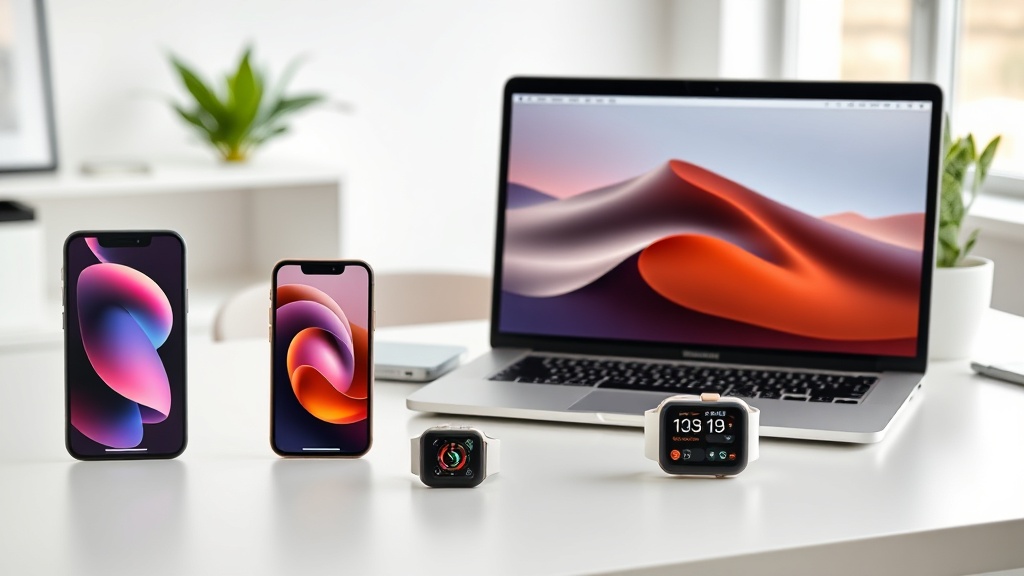
Master iOS 26 Focus Modes: 7 Tips to Boost Your Productivity

Hook: Ever feel like your phone is a constant distraction, pulling you away from the task at hand? iOS 26’s revamped Focus Modes can be the antidote — if you know how to wield them.
Context: As a former Genius Bar tech, I’ve seen countless users struggle with notification overload. The new Focus system isn’t just a mute switch; it’s a powerful automation hub that can reshape your daily workflow.
What are Focus Modes in iOS 26?
Focus Modes let you create custom profiles that filter notifications, apps, and even home‑screen pages based on what you’re doing. Apple introduced Smart Activation, which can turn a Focus on automatically when you arrive at a location or launch a specific app.
How do I set up a custom Work Focus?
- Open Settings → Focus → + and tap Work.
- Choose allowed apps – I keep Mail, Slack, and Calendar on, while silencing socials.
- Add people you still want to hear from – usually my manager and direct reports.
- Enable Smart Activation and select When I open Microsoft Teams.
Pro tip: Pair the Work Focus with a custom Home Screen page that only shows productivity widgets.
Which apps should I allow in a Work Focus?
- Mail – essential for client communication.
- Calendar – never miss a meeting.
- Notes – for quick jot‑downs.
- Safari (restricted to work‑related domains) – use the Allowed Websites list to keep you on task.
Avoid adding Games, TikTok, or Reddit – they’ll break the Focus.
How can Smart Activation automate my Focus switching?
iOS 26 learns your habits. Enable Smart Activation and set triggers:
- Location‑based: Arrive at the office → Work Focus.
- App‑based: Open Apple Music → Personal Focus.
- Time‑based: Schedule a Sleep Focus from 10 pm‑7 am.
How do I integrate Focus with my Apple Watch and Mac?
Your Focus syncs across all Apple devices. On Apple Watch, go to Settings → Focus and toggle Mirror iPhone. On macOS, open System Settings → Focus and enable Share across devices. This ensures a single tap on your iPhone silences notifications on every screen.
How can I schedule Focus periods for my daily routine?
Use the Schedule option inside each Focus:
- Morning Focus (7‑9 am) – allow News and Weather.
- Deep Work Focus (9 am‑12 pm) – only productivity apps.
- Afternoon Check‑in (12‑1 pm) – allow Messages from teammates.
- Evening Wind‑Down (7‑10 pm) – enable Sleep Focus with dimmed lock screen.
How do I fine‑tune notifications and shortcuts within Focus?
Add a Shortcut that runs when a Focus activates. Example: a shortcut that launches Focus Timer in the Clock app and sets Do Not Disturb on all devices. You can also adjust the Notification Summary to bundle non‑urgent alerts and deliver them at the end of a Focus period.
Related Reading
- iPhone 17e Buying Guide: Who It’s Actually For – decide if the new iPhone fits your workflow.
- How to Seamlessly Transfer Data to the New iPhone 17e (iOS 26) – get your data ready for a fresh Focus setup.
- iOS 26 Review: Better Workflow, Not a Magic Upgrade – a deeper dive into the OS features that power Focus.
Takeaway
Focus Modes aren’t a gimmick; they’re a productivity framework. By tailoring allowed apps, people, and smart triggers, you can cut noise, keep your attention where it matters, and let Apple’s ecosystem do the heavy lifting across iPhone, Watch, and Mac.
Ready to try? Open Settings → Focus now and build your first custom profile. You’ll be surprised how much smoother your day feels.
<meta.faqs>
[{
"question": "What is the difference between a Focus and Do Not Disturb?",
"answer": "Focus lets you filter specific apps and contacts, while Do Not Disturb silences everything indiscriminately."
}, {
"question": "Can I use the same Focus on my Apple Watch?",
"answer": "Yes – enable ‘Mirror iPhone’ in the Watch’s Focus settings to sync automatically."
}, {
"question": "How do I schedule a Focus to turn on at a certain time?",
"answer": "Inside each Focus, tap ‘Schedule’ and set the days and time range you want it active."
}]
</meta.faqs>