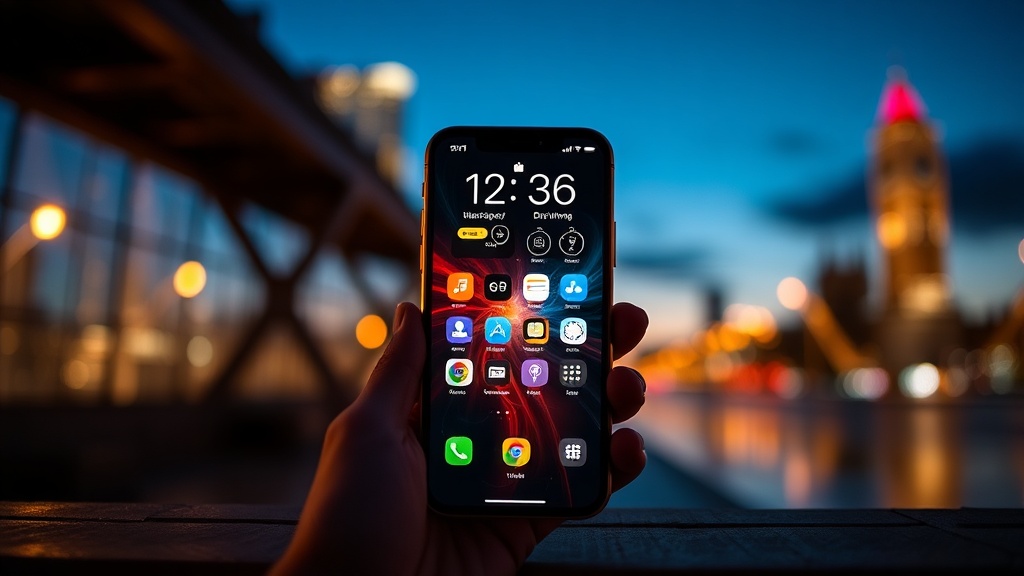
How to Use Custom Lock Screen Widgets to Personalize Your iPhone

Many users believe that the iPhone lock screen is a static element of the iOS experience, a fixed screen that only serves to display the time and a wallpaper. This is a misconception. Since the introduction of customizable lock screen widgets, the lock screen has transitioned from a simple notification hub into a highly functional dashboard. By utilizing these widgets, you can access critical information—such as weather updates, calendar events, or battery levels—without ever unlocking your device or navigating through your home screen. This guide explains how to implement, customize, and optimize these widgets to create a more efficient workflow.
The Fundamentals of Lock Screen Customization
To begin customizing your lock screen, you must first understand the layout constraints. iOS provides specific slots for widgets above the time and below the time. The slots above the clock are typically smaller and designed for single-line data or small icons, while the slots below the clock allow for more substantial information density. The goal is to place tools that provide "glanceable" information—data that you need to see in less than two seconds.
To enter customization mode, follow these steps:
- Wake your iPhone: Ensure your device is on the Lock Screen.
- Long-press the screen: Press and hold any empty area of the wallpaper. This will dim the background and reveal the "Customize" button at the bottom.
- Select the Lock Screen: You will see two options: "Customize Lock Screen" and "Customize Home Screen." Select the former.
- Tap the Widget Area: You will see rectangular boxes above and below the time. Tapping these boxes opens the widget gallery.
Once you are in this mode, you can swipe through various categories or use the search bar to find specific apps. It is important to note that not every app supports lock screen widgets, so if you cannot find a specific tool, it is likely because the developer has not yet optimized it for this specific iOS feature.
Selecting the Right Widgets for Your Workflow
The effectiveness of your lock screen depends entirely on the utility of the widgets you choose. A common mistake is adding too many widgets, which leads to visual clutter and makes it harder to read the time. Instead, curate your selection based on your daily routines. For example, if you are a frequent traveler, a Flight Tracker widget or a Weather widget is essential. If you are a student or professional, a Calendar or Reminders widget is more practical.
Essential Widgets for Daily Productivity
- Calendar: Displays your next upcoming appointment. This is vital for staying on schedule without needing to unlock the phone.
- Weather: Provides real-time temperature and precipitation alerts. This is particularly useful for those who need to plan their commute or outdoor activities.
- Battery: Shows the battery percentage of your iPhone and connected accessories like AirPods or Apple Watch. This prevents the frustration of a dead device when you are away from a charger.
- Fitness/Activity: Displays your rings or step count, providing a quick nudge to stay active throughout the day.
For more advanced users looking to streamline their entire digital life, combining these widgets with automation is a game-changer. You might consider learning how to use Shortcuts to automate your daily routine to ensure your widgets and device settings work in tandem with your habits.
Advanced Customization: Third-Party Apps and Aesthetics
While Apple's native widgets are highly reliable and optimized for battery life, third-party developers have expanded the possibilities significantly. Apps like Widgetsmith or AnyWidget allow you to create highly stylized widgets that match a specific aesthetic. This is useful if you want your lock screen to look cohesive, perhaps using a specific color palette or a minimalist design style.
When using third-party widgets, keep two things in mind:
- Battery Impact: Highly animated or frequently refreshing third-party widgets can consume more power than native Apple widgets. If you notice a significant drop in battery life, try reverting to a native widget.
- Data Privacy: Third-party apps often require access to your location or calendar to display relevant data. Always check the permissions requested by the app before granting access.
If you find that your lock screen is becoming too busy with notifications and widgets, you can use Focus Modes to minimize distractions. This allows you to have different lock screen configurations for different times of the day—for example, a "Work" lock screen with a Calendar widget and a "Personal" lock screen with a Music or Fitness widget.
Optimizing Visual Clarity and Readability
A common complaint I hear from users is that widgets can sometimes obscure the time or look "messy" against certain wallpapers. To maintain a professional and clean look, pay attention to the contrast between your wallpaper and your widgets.
Font and Color Adjustment: When you are in the "Customize" mode, you can tap on the clock itself. This allows you to change the font style and the color of the time. If you have a busy, high-detail wallpaper, choose a bolder, simpler font and a high-contrast color (like white or a bright neon) to ensure the time remains legible. If your wallpaper is dark, a light-colored font is essential.
The Depth Effect: iOS features a "Depth Effect" where the subject of your wallpaper can slightly overlap the clock, creating a 3D look. While this is visually impressive, it can sometimes make the time harder to read if the widget area is also crowded. If you find your widgets are clashing with the depth effect, you may need to choose a simpler wallpaper or adjust the widget density.
Troubleshooting Common Widget Issues
Even with a well-configured setup, you may encounter technical hiccups. Here are the most frequent issues and how to resolve them:
Widgets Are Not Updating
If your weather widget shows the temperature from three hours ago, it is likely a background refresh issue. Go to Settings > General > Background App Refresh and ensure that the specific app is allowed to refresh in the background. Additionally, ensure that "Low Power Mode" is not enabled, as this feature restricts background activity to save battery.
The Widget Is Blank or Showing an Error
This often happens after an iOS update or if the app has been recently deleted. To fix this, remove the widget from the lock screen and then re-add it. If the issue persists, check if the app requires a specific permission (like Location Services) to function. For example, a weather widget cannot display local data without location access.
The Widget Does Not Appear in the Gallery
If you cannot find a widget you previously had, check if you have recently updated your iOS version. Sometimes, major updates change how certain apps interact with the system. If the app is still installed but the widget is missing, try force-closing the app and reopening it to trigger a data refresh.
Summary Checklist for a Better Lock Screen
To ensure you are getting the most out of your iPhone's customization features, use this checklist before finalizing your setup:
- Utility First: Does every widget on my screen serve a purpose that I need to see instantly?
- Legibility Check: Can I read the time and the widget data clearly against my chosen wallpaper?
- Battery Awareness: Am I using too many third-party widgets that might drain my battery?
- Focus Integration: Have I set up different lock screens for different Focus Modes to prevent information overload?
The iPhone lock screen is no longer just a barrier to your data; it is a gateway. By moving beyond the default settings and intentionally selecting widgets that aid your specific lifestyle, you transform a simple interface into a powerful, personalized tool.
Steps
- 1
Long press your Lock Screen
- 2
Tap the Customize button
- 3
Select the Lock Screen preview
- 4
Tap the widget area to add apps
- 5
Choose your desired widgets and tap Done