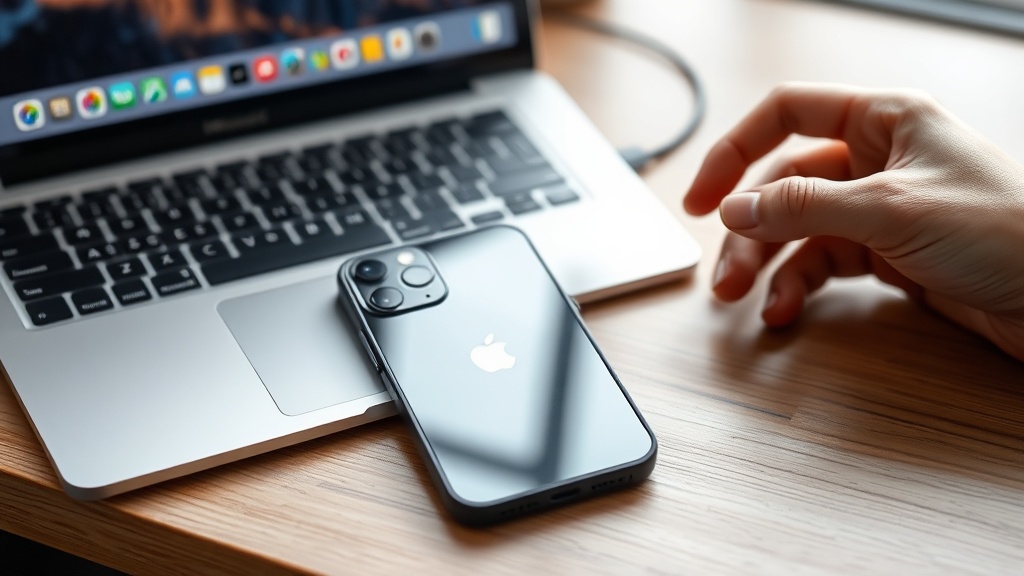
How to Seamlessly Transfer Data to the New iPhone 17e (iOS 26)

Ready to upgrade but terrified of losing everything?
You've just ordered the shiny new iPhone 17e—the one that comes with iOS 26 and a handful of free months of Apple services. But the moment you think about moving your 2,000 photos, saved passwords, and that half‑finished note app, you feel a knot in your stomach. Do I really have to start from scratch?
Why a smooth data transfer matters
Switching phones is more than a hardware swap; it's a continuity test. A glitch can mean missing memories, broken workflows, or a lost badge to your favorite app. As a former Genius Bar tech, I’ve seen the panic when a customer’s backup fails. Below is the step‑by‑step, fool‑proof method that gets every byte across without a hitch.
What tools do I need?
- Both iPhones (old and new) running at least iOS 14.
- A Wi‑Fi network that both devices can see.
- Optional but recommended: a Lightning‑to‑USB‑C cable (or the USB‑C‑to‑USB‑C cable that ships with the 17e).
- Your Apple ID and password (you’ll need to sign in on the new device).
- If you use iCloud, make sure you have enough iCloud storage for a full backup.
How does Apple’s Quick Start work?
Quick Start is Apple’s Bluetooth‑powered hand‑off. It copies most of your data over the air, then hands you over to iCloud for the heavy lifting.
- Turn on your new iPhone 17e and place it next to your old iPhone.
- On the old iPhone, a pop‑up appears: "Set up new iPhone". Tap Continue.
- Center the animation on the old iPhone’s camera as instructed. The devices will pair.
- Choose whether to transfer Wirelessly or Using a Cable. The cable method is faster (about 30 % quicker for a 128 GB backup).
- Select the data you want to bring over: apps, Apple ID, settings, photos, and more. You can also customize which apps to restore later.
- Enter your Apple ID password on the new iPhone when prompted.
- Wait. The progress bar will show two phases: Direct Transfer (usually 10‑15 minutes) and iCloud Sync (up to an hour, depending on your connection).
When the bar hits 100 %, you’re done—except for one little thing: log in to your apps that require two‑factor authentication.
Can I just use iCloud backup instead?
Absolutely. If Quick Start feels too new, you can fall back to a classic iCloud backup.
- On your old iPhone, go to Settings → Apple ID → iCloud → iCloud Backup and tap Back Up Now.
- Once the backup finishes, turn on the iPhone 17e, select Restore from iCloud Backup during setup, and pick the most recent backup.
- The restore will pull down everything—photos, messages, app data—directly from iCloud.
This method is slower (often 45‑60 minutes for a full backup) but works even if the two phones can’t see each other via Bluetooth.
What if I’m moving from Android?
Apple’s Move to iOS app still works with iOS 26. It transfers contacts, message history, photos, videos, web bookmarks, mail accounts, and calendars.
- Download the Move to iOS app on your Android device.
- During iPhone 17e setup, choose Move Data from Android.
- Enter the code displayed on the iPhone into the Android app.
- Pick what you want to move and let the devices do the rest.
Note: Apps themselves won’t transfer—only the data they store locally.
Common pitfalls and how to avoid them
- Out‑of‑date iOS on the old phone. Update to the latest iOS (iOS 26 on the 17e, but at least iOS 14 on the old device) before starting.
- Insufficient iCloud storage. If your iCloud plan is 5 GB, a full backup will fail. Upgrade to 50 GB or use the cable method.
- Battery low. Both phones need at least 50 % charge. Plug them in if you’re unsure.
- Wi‑Fi congestion. For large backups, use a 5 GHz network or a wired Ethernet‑to‑Wi‑Fi bridge.
- Two‑factor authentication hiccups. Keep your old device handy; you’ll receive verification codes on it.
What’s next after the transfer?
Once your data lands on the iPhone 17e, take a few minutes to:
- Check Settings → General → Software Update for any post‑release patches.
- Visit our iOS 26 review to learn about the new features you might have missed.
- If you’re still debating the iPhone 17e’s price, read the buying guide for a deeper cost‑benefit analysis.
- Explore the MacBook Air vs MacBook Pro guide if you’re also upgrading your laptop.
Takeaway
Transferring data to your new iPhone 17e doesn’t have to be a gamble. Whether you use Quick Start, iCloud backup, or the Move to iOS app, the steps above keep your photos, apps, and settings intact. Follow the checklist, keep both devices charged, and you’ll be back to scrolling your feeds in under an hour.
Related Reading
- iPhone 17e Buying Guide: Who It’s Actually For (And Who Should Spend the Extra $200) — A deep dive into whether the 17e is worth your money.
- iOS 26 Review: Better Workflow, Not a Magic Upgrade — What the new OS brings and what it doesn’t.
- MacBook Air vs MacBook Pro: Which Should You Actually Buy in 2026? — If you’re also swapping laptops.