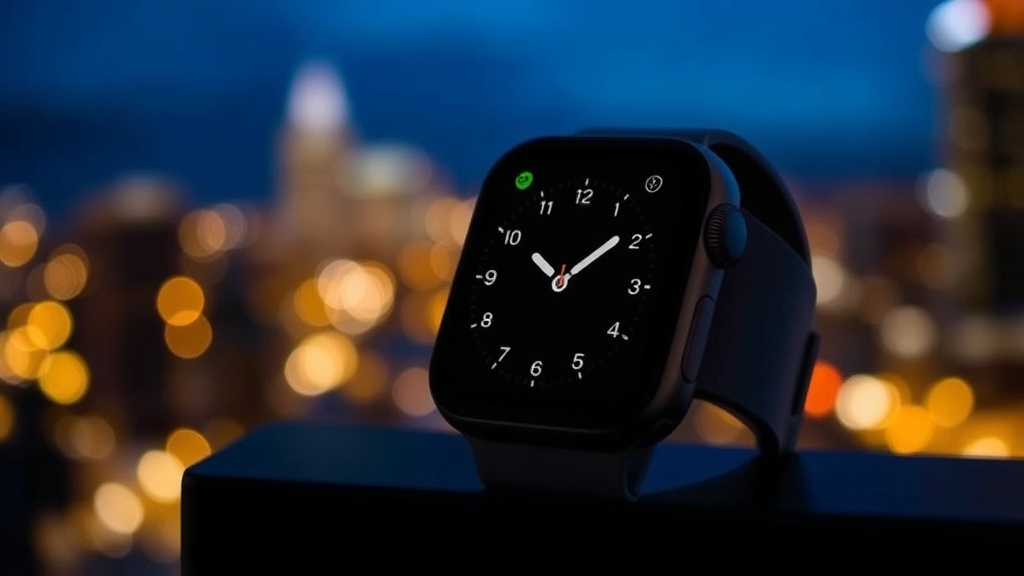
Extend Your Apple Watch's Daily Power: Practical Steps for Longer Battery Life

Does Your Apple Watch Battery Struggle to Last All Day?
Few things are more frustrating than glancing at your Apple Watch mid-afternoon, only to find its battery percentage dipping into the red. You rely on it for notifications, fitness tracking, and quick information, but a constantly dying battery turns a convenient accessory into an anxious burden. This guide will walk you through actionable strategies and overlooked settings to significantly improve your Apple Watch's battery performance, ensuring it keeps up with your day without constant trips to the charger. We’ll cover everything from display adjustments to app management, helping you reclaim your wrist-worn freedom.
Why Does My Apple Watch Battery Drain So Quickly?
It’s easy to blame an aging battery or a new watchOS update when your device seems to be guzzling power, but often, the culprits are more nuanced. Modern smartwatches are packed with sensors and features designed for convenience, yet each adds a small drain on your battery. For instance, the Always-On Display on newer models, while incredibly useful for a quick glance, means your screen is almost always active, albeit at a lower refresh rate. Then there are the constant background operations: heart rate monitoring every few minutes, blood oxygen checks, GPS tracking during workouts, and cellular connectivity (if you have an LTE model)—all working tirelessly to provide you with data.
Third-party apps also play a significant role. Many apps, even when not actively in use, can refresh content in the background, send frequent notifications, or access location services, silently chipping away at your power reserves. Even seemingly innocuous watch faces can impact battery life; highly animated or graphically rich faces, particularly those with many active complications, require more processing power and frequent updates. Understanding these underlying causes is the first step toward effective optimization, allowing you to make informed decisions about what features you truly need active throughout your day.
What Settings Can I Adjust for Better Apple Watch Endurance?
Your Apple Watch offers a wealth of customization options, many of which directly influence battery consumption. Tweaking these settings can yield substantial improvements:
- Manage Always-On Display: For Series 5 and later, this feature keeps your watch face visible at all times. While convenient, it’s a constant power draw. Go to Settings > Display & Brightness > Always On. You can disable it entirely or, if you want to keep it, scroll down to Show Apps and select which apps are allowed to display information when your wrist is down. Limiting this can save a surprising amount of power.
- Refine Wake on Wrist Raise: When you lift your wrist, your Apple Watch screen illuminates. Sometimes, this happens unnecessarily, like when you’re driving or simply moving your arm. Navigate to Settings > Display & Brightness > Wake on Wrist Raise. You can turn this off and rely on tapping the screen or using the Digital Crown, or simply reduce the sensitivity.
- Limit Background App Refresh: Just like on your iPhone, apps on your Apple Watch can refresh their content in the background. While useful for keeping information current, many apps don’t need this constant activity. Open the Watch app on your iPhone > My Watch > General > Background App Refresh. Turn off this feature globally, or selectively disable it for apps you don’t need constantly updated.
- Trim Unnecessary Notifications: Every notification that vibrates your wrist and illuminates your screen consumes battery. Take a moment to review which apps send alerts to your Watch. In the Watch app on your iPhone > Notifications, you can mirror iPhone alerts or customize notifications for each app. Be ruthless here—do you really need a Twitter notification on your wrist, or is your iPhone sufficient?
- Adjust Health Monitoring: Features like constant heart rate monitoring or blood oxygen tracking are valuable, but if you don't require real-time data for specific health conditions, you might be able to reduce their frequency. For heart rate, go to Watch app on iPhone > My Watch > Heart and consider turning off background measurements. For Blood Oxygen, go to Watch app on iPhone > My Watch > Blood Oxygen and turn off In While Sleep Mode and In Theatre Mode. Disabling these during times when you don't need them can make a difference.
- Enable Workout Power Saving Mode: If you frequently log long outdoor workouts, this setting can be a lifesaver. It reduces cellular data usage and turns off the always-on display during walks and runs. Find it in the Watch app on iPhone > My Watch > Workout > Power Saving Mode. This is a smart trade-off for extended exercise sessions.
- Optimize Cellular Usage: For GPS + Cellular models, using cellular data independently of your iPhone is a significant power drain. If you're often near your iPhone, your Watch will intelligently connect via Bluetooth or Wi-Fi, which are more power-efficient. However, if you leave your iPhone behind, be mindful of how much cellular data you’re consuming. Minimize streaming music or frequent calls when away from Wi-Fi. You can even toggle Cellular off temporarily from Control Center on your Watch if you know you won’t need it.
- Choose Simpler Watch Faces: While some watch faces are stunning, they can be battery hogs. Faces with intricate animations or numerous complications that update frequently demand more processing power. Opt for simpler, static watch faces, especially those with dark backgrounds (like the Utility or Numerals Duo faces), which require less power for OLED screens. Every pixel lit is a pixel drawing power.
- Dim the Brightness: Your Apple Watch automatically adjusts screen brightness, but you can manually lower the maximum level to conserve power. Go to Settings > Display & Brightness on your Watch and adjust the brightness slider. Most users find a slightly lower setting perfectly adequate for daily use.
How Can My Daily Habits Impact Apple Watch Battery Life?
Beyond settings, your everyday interactions and care routines for your Apple Watch also play a role in its battery longevity. Small changes in habit can add up to significant power savings:
- Keep watchOS Updated: Apple frequently releases watchOS updates that include performance improvements and battery optimizations. Always ensure your Apple Watch is running the latest version. You can check for updates in the Watch app on your iPhone > My Watch > General > Software Update. Staying current ensures you benefit from the newest power-saving technologies. For more information on updating, consult